The Featured section is the only place on a LinkedIn profile where you control big, image-led cards near the top. Most people leave it empty or fill it with three old posts. Used well, it's a shop window: one card for your best proof, one for your offer or portfolio, one for how to reach you. This guide covers the exact steps, how to fix ugly preview cards, and what to feature depending on whether you want a job or clients.
Quick steps
- On LinkedIn desktop, click Me and View profile.
- Click Add profile section, open Recommended and choose Add featured.
- Click the plus icon and choose Add a link (or a post, article or media file).
- Paste the URL, check the preview, and edit the title and description.
- Save, then drag cards so the most important one is first.
Step by step on desktop
LinkedIn's help page describes this flow for desktop. As of 21 October 2026:
- Click the Me icon at the top of LinkedIn, then View profile.
- Click Add profile section in your intro card.
- Open the Recommended dropdown and choose Add featured. (If you already have a Featured section, click the plus icon in its top-right corner instead.)
- Choose Add a link. You can also feature posts, articles, images, documents and videos.
- Paste the URL. LinkedIn fetches the page title, description and preview image.
- Edit the title and description so they say what the reader gets, then click Save.
- To reorder, click the pencil on the Featured section and drag the cards.
On mobile
The LinkedIn app has the same option under your profile's Add section button, but menus differ by app version. If you can't find it, do it once on desktop: Featured cards sync to mobile and show there as a swipeable row.
Fixing a bad preview card
The card's image and text come from the linked page's Open Graph tags. If you see a grey box, a cropped logo or "Untitled", the page you're linking to is missing those tags. You have three options: fix the tags on your own site, link to a page that already has a good preview, or upload an image file as a media card and put the link in its description.
LinkedIn caches previews. After you fix a page's tags, run the URL through LinkedIn's Post Inspector to refresh it, then remove and re-add the card. Our free social share preview checker shows what the card will look like before you add it, and the Open Graph image maker makes a 1200 × 627 image if you need one.
What to feature if you're job hunting
Hiring managers spend seconds on Featured. Three cards is plenty:
- Your strongest case study or project, with the result in the title: "Cut onboarding drop-off 18% (case study)".
- Your portfolio or personal page, so they can see more without hunting.
- Proof from others: a talk, a recommendation-rich post, or press.
What to feature if you sell services
For clients the order changes: proof first, then the offer, then the action.
- A client result with numbers or a strong testimonial.
- Your services page with a starting price.
- A booking link, so the ready-to-buy reader doesn't have to message you. See how to add a booking link to LinkedIn.
Common mistakes
Featuring your company's homepage (it's about the company, not you). Featuring a post that only made sense the week you wrote it. Leaving LinkedIn's auto-generated title, which is often the page's SEO title with a brand suffix. And featuring six things: past three, people skim and click none.
Writing card titles and descriptions
LinkedIn shows the card's title in bold and trims the description to a line or two, so the first few words carry the card. Lead with the result or the reader's benefit, then the format. Weak: "My Portfolio | Home". Strong: "8 shipped products, 3 case studies (portfolio)". Weak: "Calendly - Asha Rao". Strong: "Book a 20-min intro call".
Keep the description to one concrete sentence: who it's for, what they'll get, how long it takes. "Three short case studies from fintech onboarding projects, each under two minutes to read." Avoid hashtags and emoji strings; they look like noise in a card.
Revisit Featured whenever your goal changes. A card that was right while you were job hunting ("Open to product roles") becomes wrong the week you start freelancing. A quick monthly look keeps the most valuable space on your profile working for the goal you have now.
Featured or the intro website link?
Use both. The intro website link sits under your headline and is the one people tap without scrolling, so make it your main destination. Featured is where you show what's behind it with images and context. If you can only maintain one, keep the intro link current: an out-of-date Featured card is a small loss, a dead intro link is a big one.
How featurd does it
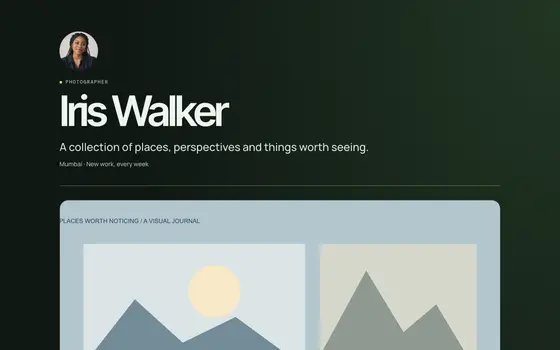
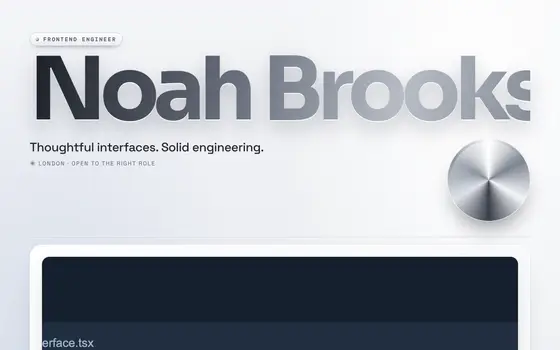
Your featurd page is built to be the card you feature: it ships with a proper preview image, title and description, and you can change the preview card from the editor. Paste your LinkedIn URL and Ivo drafts the page from your experience, so the card links to your work, proof and contact in one place. On Pro, send tracked links to specific recruiters or clients and see when they opened it, on what device and from which country.
 Venture
 Liquid Chrome